
Introduction
Setting up a printer should be simple, but when it comes to connecting an HP printer to WiFi, many users struggle. Whether you just bought a new HP DeskJet, Envy, or OfficeJet, or you’re reconnecting after changing your router, this step-by-step guide will help you connect your HP printer to WiFi effortlessly.
We’ll cover:
- ✅ Different connection methods (WPS, HP Smart App, Manual setup)
- ✅ How to connect on both Windows and Mac
- ✅ Troubleshooting common issues (like “printer not found”)
- ✅ Tips for a more stable wireless printing experience
Let’s get started.
1. Understanding WiFi Printing with HP Printers
Most modern HP printers support wireless printing. Connecting your HP printer to WiFi allows you to:
- Print directly from laptops, smartphones, or tablets without cables.
- Use cloud printing apps like HP Smart.
- Place your printer anywhere in your home or office, without worrying about cable length.
There are 3 primary ways to connect:
- WPS (WiFi Protected Setup) – fastest if your router supports it.
- HP Smart App – beginner-friendly, works on iOS, Android, Windows, and Mac.
- Manual Wireless Setup – using the printer’s control panel or touchscreen.
2. Method 1: Connect HP Printer to WiFi via WPS
Step 1: Check Compatibility
- Your WiFi router must support WPS button mode.
- Your HP printer must have a wireless button or touchscreen.
Step 2: Start WPS on Printer
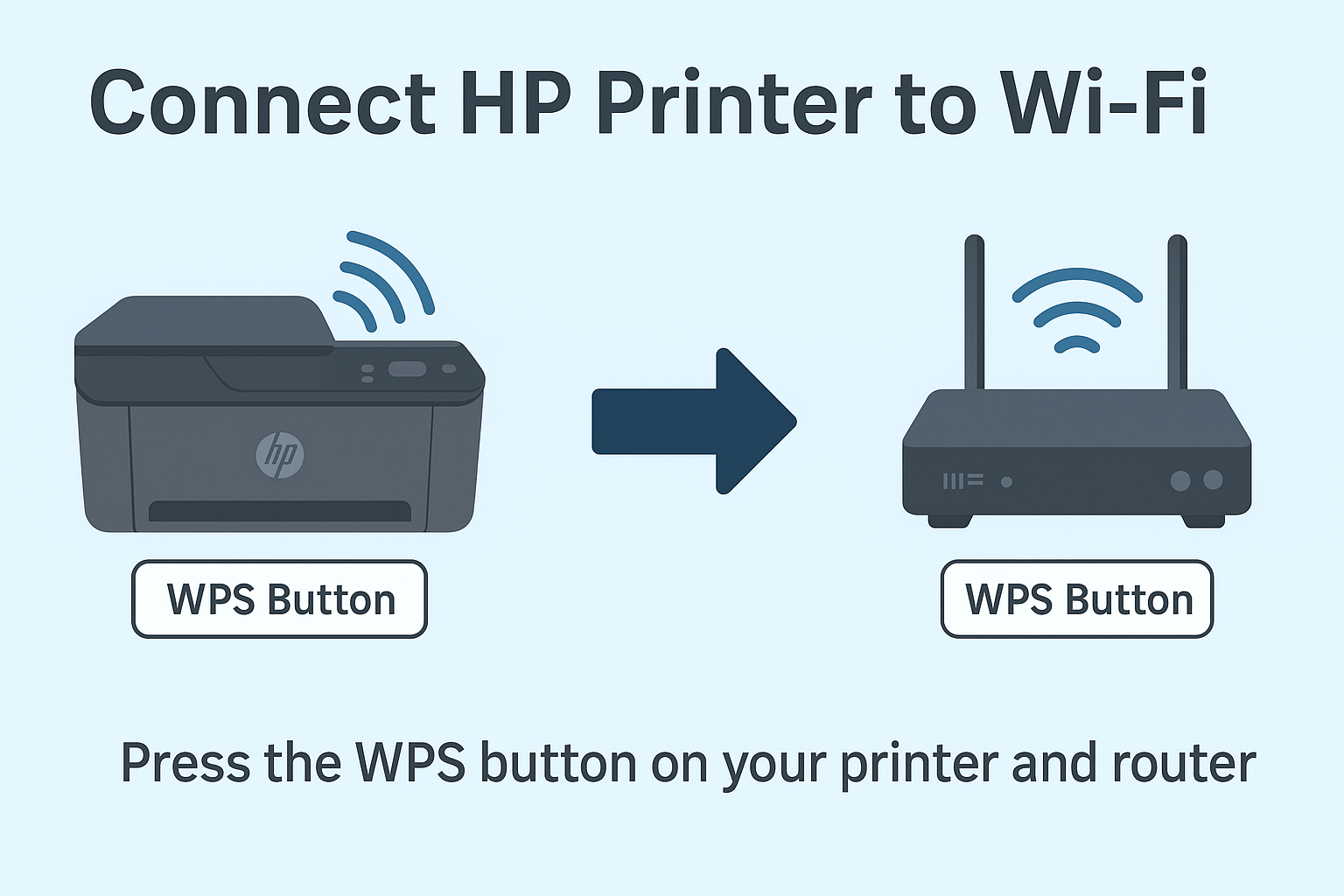
- On your HP printer, press the Wireless button (or tap Wireless menu on touchscreen).
- Select WiFi Protected Setup (WPS).
- Choose Push Button option.
Step 3: Activate WPS on Router
- Within 2 minutes, press the WPS button on your WiFi router.
✅ Your printer will automatically connect to WiFi.
3. Method 2: Connect HP Printer to WiFi Using HP Smart App
Step 1: Download the HP Smart App
- Windows/Mac: Get from HP’s official site.
- Mobile: Available on App Store or Google Play.
Step 2: Prepare Your Printer
- Plug in the printer and power it on.
- Make sure it’s in setup mode (factory reset if necessary).
Step 3: Add Printer in HP Smart App
- Open HP Smart.
- Click + Add Printer.
- The app will search for available printers.
Step 4: Enter WiFi Details
- Select your WiFi network.
- Enter your WiFi password.
- Wait for the printer to connect.
✅ Once connected, the app confirms setup, and you can print a test page.
4. Method 3: Manual Wireless Setup (Printer Control Panel)
Step 1: Access Wireless Settings
- On the HP printer, go to Setup → Network → Wireless Setup Wizard.
Step 2: Select Your WiFi
- The printer scans available WiFi networks.
- Choose your home WiFi from the list.
Step 3: Enter WiFi Password
- Use the printer’s keypad or touchscreen.
- Confirm and wait for connection.
✅ You’ll see a confirmation message once connected.
5. How to Connect HP Printer to WiFi on Windows
- Open Control Panel → Devices and Printers → Add a Printer.
- Windows will search for available printers.
- Select your HP printer from the list.
- Install drivers if prompted.
- Print a test page to confirm.
6. How to Connect HP Printer to WiFi on Mac
- Go to System Preferences → Printers & Scanners.
- Click + Add Printer.
- Select your HP printer.
- Click Add (Mac auto-installs drivers).
- Try printing a test document.
7. Troubleshooting: HP Printer Won’t Connect to WiFi
If your printer isn’t connecting:
- Restart Devices – power cycle your router, printer, and computer.
- Check WiFi Band – many HP printers only support 2.4 GHz, not 5 GHz.
- Reset Network Settings – restore printer to factory defaults.
- Update Firmware – outdated printer software can block connections.
- Use USB Setup – temporarily connect via USB to install wireless drivers.
8. Pro Tips for Stable HP WiFi Printing
- Place your printer near the router for stronger signals.
- Assign a static IP to your printer to avoid reconnection issues.
- Keep your HP Smart App updated for better performance.
- Use high-quality routers if multiple devices are connected.
Conclusion
Connecting your HP printer to WiFi may sound complex, but with the right method (WPS, HP Smart App, or Manual Setup), you’ll be up and running in minutes. Whether on Windows or Mac, wireless printing saves time and adds convenience to your home or office.
If you face issues, try the troubleshooting steps above or reinstall the HP Smart App. Once connected, you’ll enjoy seamless, cable-free printing.

Leave a Reply