
Home Assistant’s Map view is a powerful way to visualize where your family members, roommates, or devices are in real time. By adding a person to the map, you can track presence, improve automations, and enhance your smart home experience.
In this guide, we’ll walk you through step by step how to add a person to Home Assistant’s Map view.
Why Add People to the Map?
- ✅ See who is at home or away at a glance
- ✅ Use location data for automations (e.g., turn off lights when everyone leaves)
- ✅ Improve family awareness and convenience
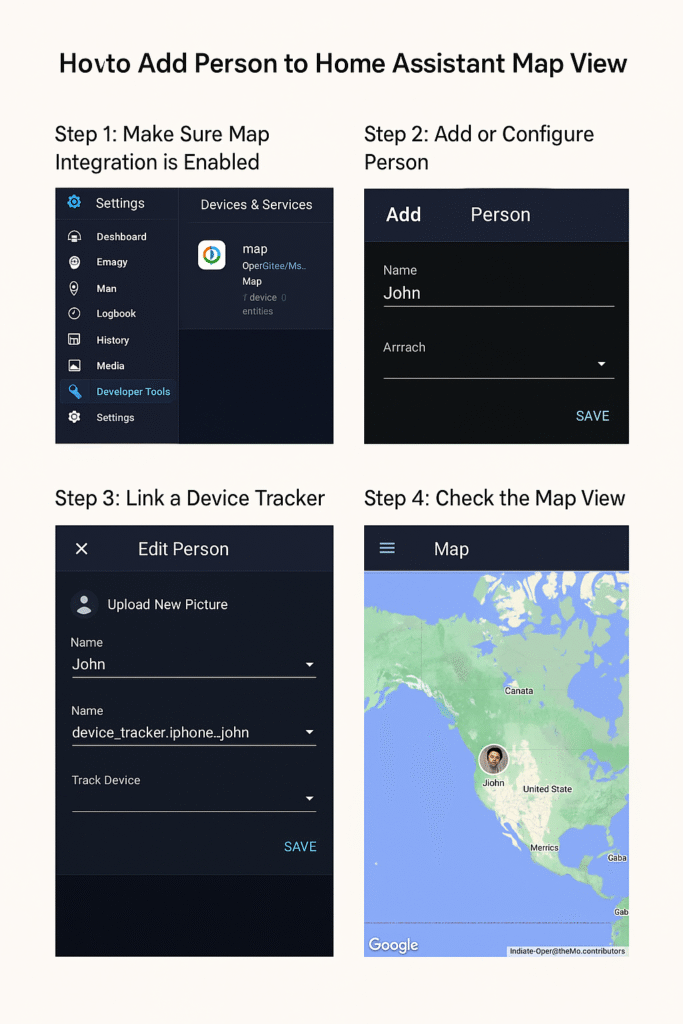
Step 1: Make Sure Map Integration is Enabled
- In your Home Assistant sidebar, go to Settings → Devices & Services.
- Search for Map and ensure the integration is enabled.
- If not, click + Add Integration, then search for Map and add it.
Step 2: Add or Configure a Person
- Navigate to Settings → People.
- Click + Add Person.
- Enter the name (e.g., “John”).
- Optionally, assign a user account if the person logs into Home Assistant.
- Click Save.
Step 3: Link a Device Tracker
Adding a person alone won’t show them on the map — you need to connect a device tracker (usually a phone).
- Under the person’s profile, click Edit.
- In the Track Device field, select their phone from the dropdown (e.g.,
device_tracker.iphone_john).- This requires you to already have a tracker set up (like the Home Assistant Companion app, GPS Logger, or other integrations such as Life360).
- Save changes.
Step 4: Check the Map View
- Go to the Map section in the sidebar.
- You should now see the person’s avatar on the map.
- If the location doesn’t appear, double-check the device tracker integration is working.
Troubleshooting
- Person not showing up? Ensure their device tracker is updating location.
- Wrong location? Check phone location settings and permissions.
- Map blank? Verify that the Map integration is installed and loaded correctly.
Final Thoughts
Adding people to the Home Assistant Map view makes your smart home more intuitive and location-aware. Once set up, you can build automations like:
- Turn off AC when everyone leaves.
- Send a notification when kids arrive home from school.
- Unlock the door when you arrive home.
With a little configuration, you’ll always know who’s home — and your automations will feel smarter than ever.
Leave a Reply